
What "video to PDF" really means
A PDF can't play video, so converting "video to PDF" means capturing still frames and laying them out as pages. The useful part is choosing which frames: a PDF of 900 nearly identical frames is useless; a PDF of the 12 moments that matter is gold.
Great uses for a frames-to-PDF export
- Storyboards and shot lists — one frame per scene for planning or pitching.
- Lesson and lecture notes — capture slides or whiteboard moments from a recorded class.
- Client and team reviews — people can comment on a PDF without scrubbing a video.
- Sports and technique analysis — key positions of a movement on consecutive pages.
- How-to documentation — turn a screen recording into step-by-step pages.
How to convert video frames to a PDF on iPhone
-
Open the video
Share it from Photos to Video To Photo – Grab Frame, or open the app and choose the clip.
-
Grab the key moments
Scrub through and tap Grab This Frame at every scene, slide or step you want in the document.

-
Choose PDF as the save format
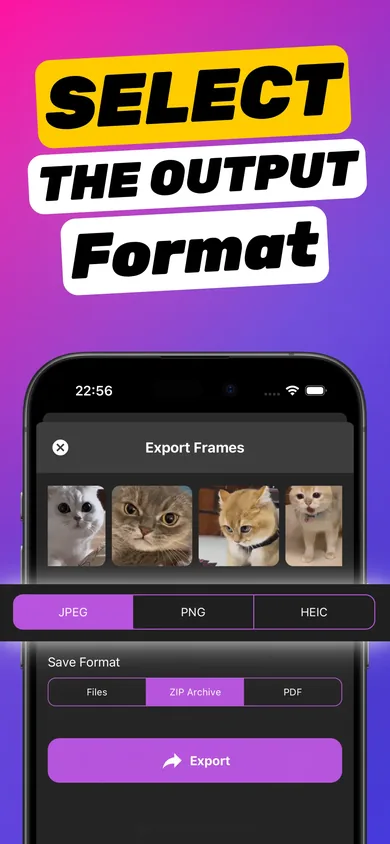
Tap Export, pick JPEG, PNG or HEIC for the images, then select PDF under Save Format and export.
-
Share or save the PDF
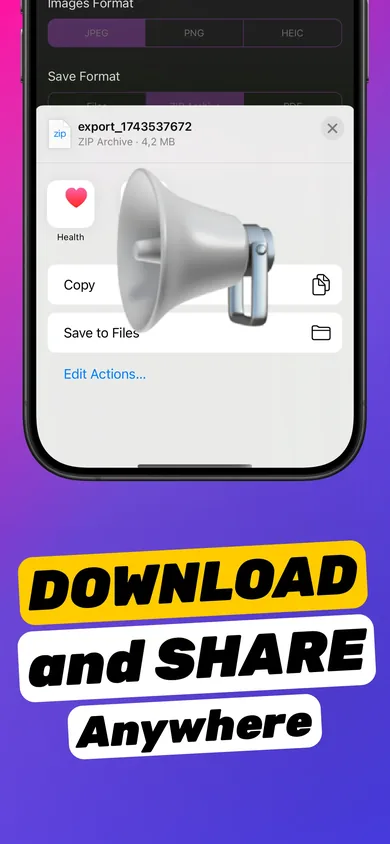
Save it to Files, AirDrop it, or attach it to an email or chat straight from the share sheet.
Try it on your own video — it takes about a minute.

Tips for a clean PDF
- Grab frames in the order you want the pages — scrub from start to end.
- Pick moments where text on screen is fully visible and not mid-transition.
- Choose PNG as the image format when frames contain slides or small text.
- Save the project so you can add pages later and re-export.
PDF vs ZIP
Export a PDF when people need to read or comment on frames in order. Export a ZIP when they need the individual image files, for example to drop into a design tool. Both are covered in extracting multiple frames from a video.
Frequently asked questions
Can I convert a video to PDF without uploading it?
Yes. Video To Photo – Grab Frame builds the PDF on your iPhone from the frames you grab. The video never leaves your device.
How are frames laid out in the PDF?
The PDF contains the frames you grabbed, so grab them from start to end to keep the document in the same order as the video.
Can I make a storyboard from a video on iPhone?
Yes. Grab one frame per shot or scene and export as PDF. You get a simple storyboard you can annotate in Markup or any PDF app.