
Option 1: the built-in way on iOS 27
- Open the video in Photos and pause on the frame (drag the timeline for precision).
- Tap the ••• button in the top-right corner.
- Choose Save Video Frame as Photo.
The frame is saved at the video's resolution as HEIF or JPG (per your camera format setting). Two things to know: it saves one frame per tap, and the new photo keeps the video's original date, so you'll find it next to the video rather than at the top of Recents.
Option 2: when you need more than one frame, or you're on iOS 26 or earlier
Older iOS versions can't export a frame at all — the workaround is a screenshot, which saves your screen rather than the frame (see why video screenshots lose quality). And even on iOS 27, a frame grabber is faster when you want a set of frames, PNG files, or a ZIP or PDF to send.
How to save a frame from a video on iPhone
-
Share the clip from Photos
Open the video, tap Share and pick the app in the share sheet. It opens straight into frame-grab mode for that clip.

-
Find the frame and grab it
Drag along the filmstrip to the exact frame and tap Grab This Frame. The counter shows how many frames you've grabbed.

-
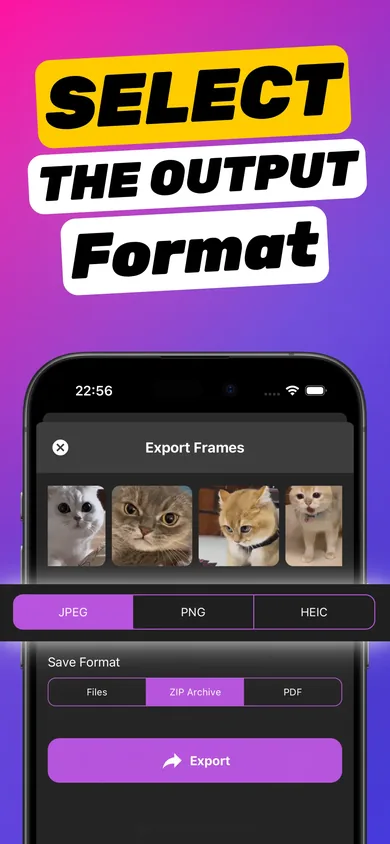
Choose the format
Tap Export. Pick JPEG for sharing, PNG for lossless quality or HEIC for small, high-quality files. Leave the save format on Files for a normal image.
-
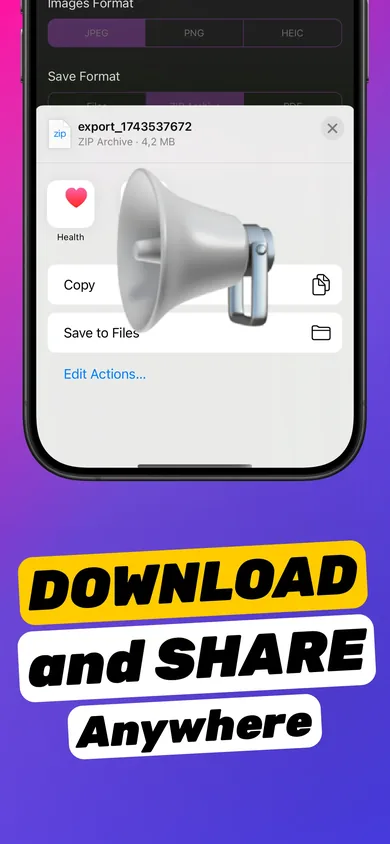
Save to Photos or Files
In the share sheet, save the image to your Photos library, choose Save to Files, or send it straight to a chat or email.
Try it on your own video — it takes about a minute.

Where does the saved frame go?
- Photos library — appears in Recents like any other photo, ready for editing, sharing or printing.
- Files — pick an iCloud Drive or On My iPhone folder; handy for work projects.
- Any app — the share sheet can send it directly to Messages, Mail, Instagram and more.
Saving several frames at once
Grab every frame you want before exporting. You can export them together as separate images, bundle them into one ZIP archive, or combine them into a PDF. See how to extract multiple frames from a video.
Come back later
Each clip you open is kept as a project, so you can return tomorrow and save more frames without searching for the video again.
For a broader walkthrough, our blog has how to extract a frame from video on iPhone.
Frequently asked questions
Can the iPhone Photos app save a frame from a video?
Yes, from iOS 27: pause the video, tap ••• and choose Save Video Frame as Photo. It saves one frame at a time as HEIF or JPG. Earlier iOS versions have no built-in option besides a screenshot.
Does saving a frame change the original video?
No. The app reads the video and writes a new image file. Your video stays exactly as it was in Photos.
Can I save the frame straight to my camera roll?
Yes. After exporting, choose the option to save the image in the share sheet and it appears in your Photos library.
Does it work offline?
Yes. Frames are extracted on your iPhone, so it works without a connection and nothing is uploaded.