
Can you take a picture from a video on iPhone?
Yes. A video is simply 24, 30 or 60 still images per second, and getting one out as a photo is called extracting a frame. Which method is best depends on your iOS version and how many frames you need.
Your options, compared
| Method | Quality | Limits | Best for |
|---|---|---|---|
| Photos → Save Video Frame as Photo (iOS 27+) | The video's own resolution, HEIF or JPG | One frame at a time; the photo is filed under the video's original date, not in Recents | A single quick still on iOS 27 |
| Screenshot a paused video | Screen resolution; controls or black bars often included | Hard to hit the exact moment | A throwaway reference on older iOS |
| Live Photo → Make Key Photo | Full photo quality | Only for Live Photos, not videos | Changing the cover frame of a Live Photo |
| Video To Photo – Grab Frame | Taken from the video file | Needs the app (iOS 18.6+) | Many frames per clip, PNG, ZIP or PDF export, older iOS versions |
On iOS 27: the built-in way
- Open the video in Photos, pause on the moment, tap the ••• button and choose Save Video Frame as Photo.
- The frame is saved to your library as a photo at the video's resolution.
- Look for it under the video's original date — it inherits the video's date and location, so it won't appear at the top of Recents.
That's perfect for one frame. It gets slow when you want ten moments from the same clip, need PNG for editing, or want to hand someone a ZIP or PDF of frames.
Why a screenshot isn't the same as a photo
On iOS 26 and earlier, a screenshot is the usual workaround. It saves what's on the display, so a landscape 4K clip viewed on a portrait screen fills only a narrow strip, and you have to crop out controls and pause at exactly the right instant.
How to get several pictures from a video with Video To Photo – Grab Frame
-
Share the video to the app
Open the video in Photos, tap Share and pick the app in the share sheet. You can also open Video To Photo – Grab Frame first and choose a clip from your library.

-
Scrub to the moment and grab it
Drag along the filmstrip until the preview shows the exact moment, then tap Grab This Frame. Grab a few neighbouring frames if the subject is moving.

-
Check the frame
Open the preview, zoom in on faces or text, and delete any frame that's blurry. Keep the sharpest one.

-
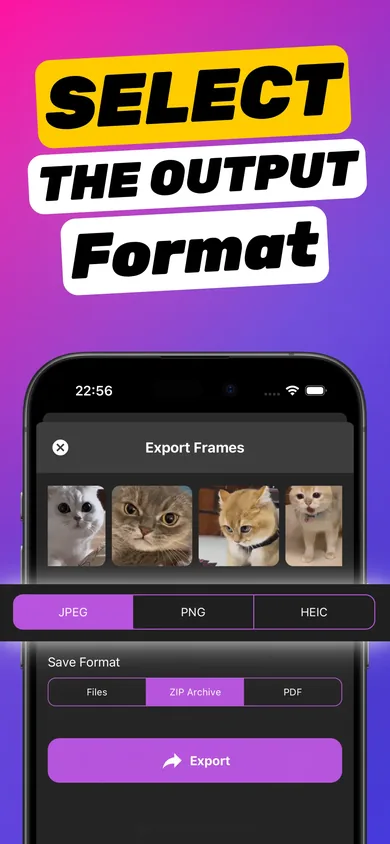
Export as a photo
Choose JPEG, PNG or HEIC and export. Save the image to Photos or Files, or share it straight to Messages, Instagram or email.
Try it on your own video — it takes about a minute.

Tips for a better picture from your video
- Look for the pause in the action. The top of a jump, the moment before a smile fades — frames where movement slows are the sharpest.
- Grab three frames, keep one. Neighbouring frames can look identical until you zoom in. Grab a few and compare in the preview.
- Shoot in 4K or 60 fps when you can. More pixels and shorter exposure per frame mean crisper stills later. See how to get a clear picture from a video.
- Pick the right format. JPG to share, PNG to edit, HEIC to save space. More in video to JPG, PNG or HEIC.
What if I shot a Live Photo instead?
Live Photos already contain a short video. Open the photo in Photos, tap Edit, tap the Live Photo button, move the white frame along the strip and tap Make Key Photo. That swaps which frame is shown; if you need several different stills, a frame grabber is quicker. Our blog explains how to convert Live Photos to still images.
Does it change or upload my video?
No. Video To Photo – Grab Frame works on a copy inside the app and processes everything on your iPhone. Your original video stays exactly as it was in Photos, and nothing is sent to a server. For the general background on frame extraction, see how to save a still image from a video.
Frequently asked questions
Is there a built-in way to get a picture from a video on iPhone?
Yes, on iOS 27 and later: pause the video in Photos, tap the ••• button and choose Save Video Frame as Photo. It saves one frame at a time as HEIF or JPG. On iOS 26 and earlier there's no built-in option besides taking a screenshot.
Where does the saved frame go on iOS 27?
Into your Photos library, but it keeps the video's original date and location, so it's sorted next to the video rather than at the top of Recents.
Will the picture be the same quality as the video?
Yes, as long as you save the frame itself rather than a screenshot — both the iOS 27 Photos option and Video To Photo – Grab Frame read the frame from the video file. Fast motion can still show blur, so pick a still moment.
Can I get several pictures from one video?
Yes. Tap Grab This Frame for every moment you want, then export them together as separate images, a ZIP archive or a PDF.
Does this work on older videos in my library?
Yes. Any video in your Photos library or Files can be opened, including clips you received in Messages or AirDrop and saved.