
What is a frame grabber?
A frame grabber is an app that pulls individual still images (frames) out of a video and saves them as photos. Since iOS 27, the Photos app can save one paused frame with Save Video Frame as Photo. A dedicated app is still worth it on older iOS, and when you need many frames, PNG files, or a ZIP or PDF of stills.
6 things to look for
- Precise frame selection. A filmstrip or scrubber that lets you land on the exact moment, not just the nearest second.
- Real frame extraction. The image should come from the video file, not a picture of the screen. Test it: grab a frame from a landscape 4K clip and check the image size.
- On-device processing. Your family videos shouldn't need an upload. Check the App Privacy label and try it in airplane mode.
- Batch grabbing. Storyboards, sports and tutorials need many frames. Tapping once per frame and exporting once is a huge time-saver.
- Formats and containers. JPG, PNG and HEIC cover every use. ZIP and PDF export are rare but useful for sending sets of frames.
- Fair pricing. Look at what's free, what needs a subscription, and whether there's a one-time option.
How to test a frame grabber app in two minutes
-
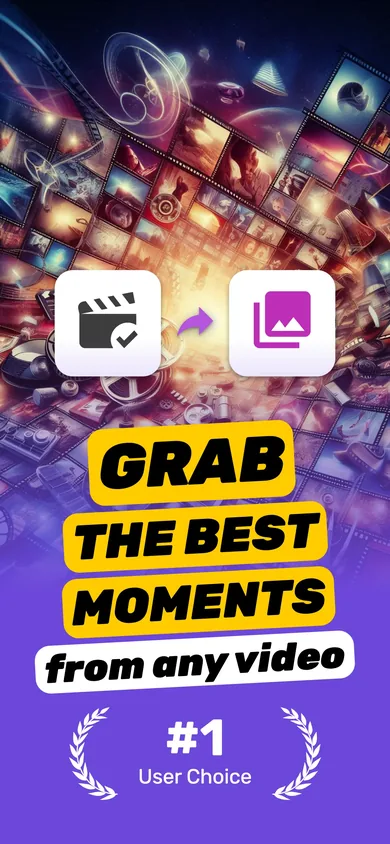
Open a real video
Use a landscape clip with movement. In Video To Photo – Grab Frame, share it from Photos and it opens straight into frame-grab mode.
-
Try to hit one exact frame
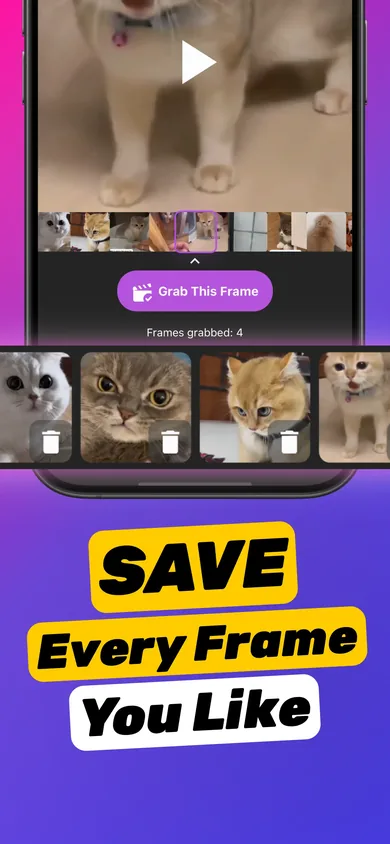
Scrub to a blink or a ball in mid-air. The filmstrip plus large preview should make that easy — tap Grab This Frame.
-
Grab several and review
Grab four or five frames, then preview and zoom. You should be able to delete misses before exporting.

-
Export and check the file
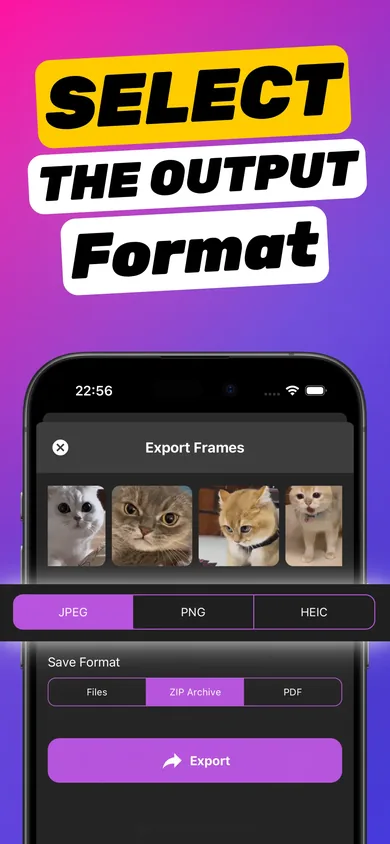
Export as PNG and open the image info in Photos. The dimensions should match the video, not your screen.
Try it on your own video — it takes about a minute.

How Video To Photo – Grab Frame stacks up
| Feature | Grab Frame |
|---|---|
| Open from Photos share sheet | Yes — lands directly in frame-grab mode |
| Frame source | Extracted from the video file |
| Batch grabbing | Grab many frames in one session |
| Formats | JPEG, PNG, HEIC |
| Export as | Separate files, ZIP archive or PDF |
| Projects | Saved and reopenable |
| Privacy | 100% on-device, no account; App Privacy: no data linked to you |
| Price | Free download; Pro via in-app purchase (free trial, annual or lifetime) |
When you don't need an app
If you're on iOS 27 and need a single frame, use Photos: pause the video, tap ••• and choose Save Video Frame as Photo. On older iOS, a screenshot is fine for a rough, one-off image. The moment quality, precision or quantity matter, a dedicated frame grabber pays off. For a wider market overview, see our blog's best apps to extract frames from video.
Frequently asked questions
Is there a free frame grabber app for iPhone?
Video To Photo – Grab Frame is a free download. Some features are part of Pro, available through in-app purchase with a free trial, an annual plan or a one-time lifetime option. Check the App Store listing for current pricing in your country.
Do frame grabber apps upload my videos?
Some online tools do. Video To Photo – Grab Frame processes everything on your iPhone and works offline, so your videos never leave the device.
Does it work with 4K and slow-motion videos?
Yes, it works with videos in your Photos library, including 4K, 60 fps and slow-motion clips. Higher-quality recordings give sharper stills.