
Do you need all frames, or the right ones?
A 30-second clip at 30 fps is 900 frames. Exporting every single one (the desktop approach with tools like ffmpeg or VLC) leaves you with hundreds of near-identical files to sort through. On a phone, it's almost always faster to pick the frames that matter and export just those.
| Goal | Best approach |
|---|---|
| Storyboard or lesson steps | Grab one frame per scene or step |
| Sports / motion sequence | Grab frames at even gaps through the movement |
| Find the perfect shot | Grab 3–5 neighbouring frames, keep the sharpest |
| Every frame for animation or analysis | Desktop tools (ffmpeg) are better suited |
How to extract multiple frames from a video on iPhone
-
Open the clip
Share the video from Photos to the app, or open Video To Photo – Grab Frame and pick it.

-
Grab every moment you need
Scrub along the filmstrip and tap Grab This Frame at each moment. The tray fills up and the counter shows how many frames you have.

-
Review the set
Preview frames full screen, zoom to check focus, and remove duplicates or blurry ones.

-
Export them together
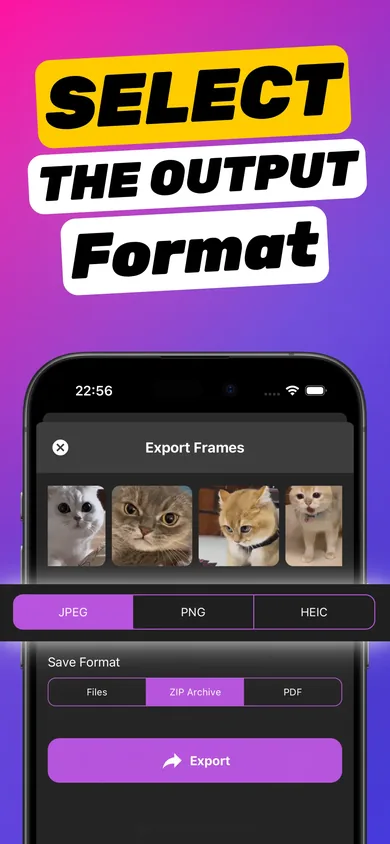
Pick JPEG, PNG or HEIC, then choose Files for separate images, ZIP Archive for one download, or PDF for a single document.
Try it on your own video — it takes about a minute.

ZIP, PDF or separate files?
- Separate files — best when you'll edit or post frames individually.
- ZIP archive — one tidy file to AirDrop, email or upload to a shared drive. The recipient unzips and gets every frame.
- PDF — your selected frames in one document. Great for storyboards, class notes and client reviews. See turning video frames into a PDF.
Tips for sequences
- For a motion sequence, grab frames at roughly even gaps so the movement reads smoothly.
- Use PNG if you'll combine frames into a collage or composite later — it avoids repeated JPEG compression.
- Save the project. You can reopen the clip later to add frames you missed.
Frequently asked questions
How many frames can I grab from one video?
Grab as many moments as you need — tap Grab This Frame for each one — then export the whole set together. Larger sets simply take a little longer to export.
Can I extract every single frame automatically?
Video To Photo – Grab Frame is designed for choosing frames. If you truly need every frame for animation or analysis, a desktop tool such as ffmpeg is the better fit.
How do I send lots of frames at once?
Export as a ZIP archive and share the single file via AirDrop, Mail or Files. Or export a PDF so the frames stay in order.